Direct Mail Communications Summary - Comparison Tab
The Comparison tab on the Report Results panel on the Direct Mail Communications Summary screen is used to compare the currently requested Direct Mail Communications Summary report with another Direct Mail Communications Summary report requested for a different date range.

|
To access the Comparison tab, select the Comparison tab on the Report Results panel on the Direct Mail Communications Summary screen. |
 Comparison Criteria Panel
The Comparison Criteria panel is used to select two date ranges to compare sales statistics on the report.

When the comparison tab is accessed, the From Current Date field and the To Current Date field automatically display the date range for which the current report was requested. The From Previous Date field and the To Previous Date field display the date range immediately preceding the range entered in the From Current Date field and the To Current Date field, matching the current range in length. For example, if the report is requested for the current month, the previous range will be the prior month.
To compare sales statistics for two different time periods, enter the oldest date range in the From Previous Date field and the To Previous Date field. Then enter the most recent date range in the From Current Date field and the To Current Date field, and click the RUN button.
The following fields are available on the Comparison Criteria panel.
From Previous Date: Enter the beginning date in a range of dates previous to the current date range entered in the From Current Date field and the To Current Date field. When this field is accessed, a calendar displays, where a date can be selected. The date range cannot exceed 92 days.
Note - The beginning date in a date range immediately preceding and matching the current date range in length is automatically entered, but can be changed.
To Previous Date: Enter the ending date in a range of dates previous to the current date range entered in the From Current Date field and the To Current Date field. When this field is accessed, a calendar displays, where a date can be selected. The date range cannot exceed 92 days.
Note - The ending date in a date range immediately preceding and matching the current date range in length is automatically entered, but can be changed.
From Current Date: Enter the beginning date in a range of dates following the previous date range entered in the From Previous Date field and the To Previous Date field. When this field is accessed, a calendar displays, where a date can be selected. The date range cannot exceed 92 days.
Note - The beginning date in the range of dates for which the report was originally requested in the Report Criteria panel displays, but can be changed.
To Current Date: Enter the ending date in a range of dates following the previous date range entered in the From Previous Date field and the To Previous Date field. When this field is accessed, a calendar displays, where a date can be selected. The date range cannot exceed 92 days.
Note - The ending date in the range of dates for which the report was originally requested in the Report Criteria panel displays, but can be changed.
Interaction Results Panel
The Interaction Results panel is used to compare the total number of direct mail pieces that were sent during each date range.

The following items are available on the Interaction Results panel.
Interaction Results: The following information about direct mail campaigns displays in this column.
Total Sent: The number of direct mail pieces sent during the corresponding date range displays.
Individuals Contacted: The number of prospects to which direct mail was sent during the corresponding date range displays.
% Change: The difference between results for the current and previous date ranges displays as a percentage. If the value for the current date range is larger, the percentage is positive. If the value for the previous date range is larger, the percentage is negative and displays in red text.
Sold Matches Results Panel
The Sold Matches Results panel is used to compare the profits and revenue generated by sold matches during each date range. A sold match is a sold deal that is associated with an XtreamService lead.
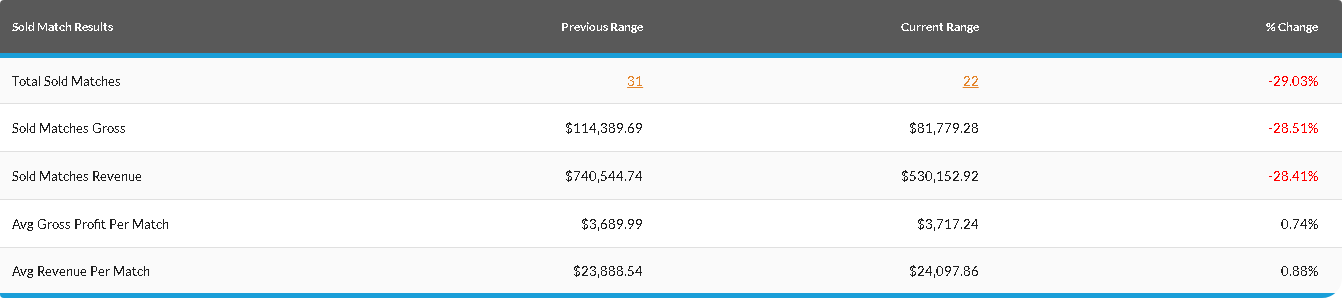
The following items are available on the Sold Matches Results panel.
Sold Match Results: The following information about sold matches generated from direct mail campaigns displays in this column.
Sold
Sold
% Change: The difference between results for the current and previous date ranges displays as a percentage. If the value for the current date range is larger, the percentage is positive. If the value for the previous date range is larger, the percentage is negative and displays in red text.
Customer Type Panel
The Customer Type panel is used to compare the number of sold matches during each date range based on the type of customer. A sold match is a sold deal that is associated with an XtreamService lead.

The following items are available on the Customer Type panel.
The following types of customers can display.
- Other Customers. These customers have no previous sales or service history with the dealership; however, they purchased vehicles during the report time frame.
- Repeat Sales. These customers have sales history with the dealership and purchased vehicles during the report time frame.
- Service to Sales. These customers have service history but no previous sales history with the dealership; however, they purchased vehicles during the report time frame.
% Change: The difference between results for the current and previous date ranges displays as a percentage. If the value for the current date range is larger, the percentage is positive. If the value for the previous date range is larger, the percentage is negative and displays in red text.
Pay Type Panel
The Pay Type panel is used to compare the number of sold matches during each date range that used different pay types. A sold match is a sold deal that is associated with an XtreamService lead.

The following items are available on the Pay Type panel.
Pay Type: The type of vehicle deal, such as Finance or Lease, displays.
% Change: The difference between results for the current and previous date ranges displays as a percentage. If the value for the current date range is larger, the percentage is positive. If the value for the previous date range is larger, the percentage is negative and displays in red text.
Interaction Type Panel
The Interaction Type panel is used to compare the number of sold matches during each date range that result from service interactions and from campaign interactions. A sold match is a sold deal that is associated with an XtreamService lead. In addition, this panel is also used to compare the total gross profit for the current range.
Note - Gross profit information only displays on this tab if the View Gross Profit check box is selected on the Report Criteria panel.

The following items are available on the Interaction Type panel.
Interaction Type: The type of customer interaction associated with the
Total
Total Gross: The gross profit displays for sold matches associated with the corresponding interaction type during the corresponding date range.
Total Revenue: The revenue generated from sold matches associated with the corresponding interaction type during the corresponding date range displays.
% Change: The difference between results for the current and previous date ranges displays as a percentage. If the value for the current date range is larger, the percentage is positive. If the value for the previous date range is larger, the percentage is negative and displays in red text.
Vehicle Sales Type Panel
The Vehicle Sales Type panel is used to compare new, used, and certified vehicle sales to XtreamService customers during each date range.

The following items are available in the Vehicle Sales Type panel.
Vehicle
% Change: The difference between results for the current and previous date ranges displays as a percentage. If the value for the current date range is larger, the percentage is positive. If the value for the previous date range is larger, the percentage is negative and displays in red text.
Vehicle Acquisition Type Panel
The Vehicle Acquisition Type panel is used to compare the sources for vehicle purchases during each date range.

The following items are available in the Vehicle Acquisition Type panel.
Vehicle
% Change: The difference between results for the current and previous date ranges displays as a percentage. If the value for the current date range is larger, the percentage is positive. If the value for the previous date range is larger, the percentage is negative and displays in red text.
Top 5 Vehicle Models Sold Panel
The Top 5 Vehicle Models Sold panel is used to compare the five best selling vehicle models during each date range. Results display for new, used, and certified vehicle models. Information for new vehicles includes the model year as well as the model.
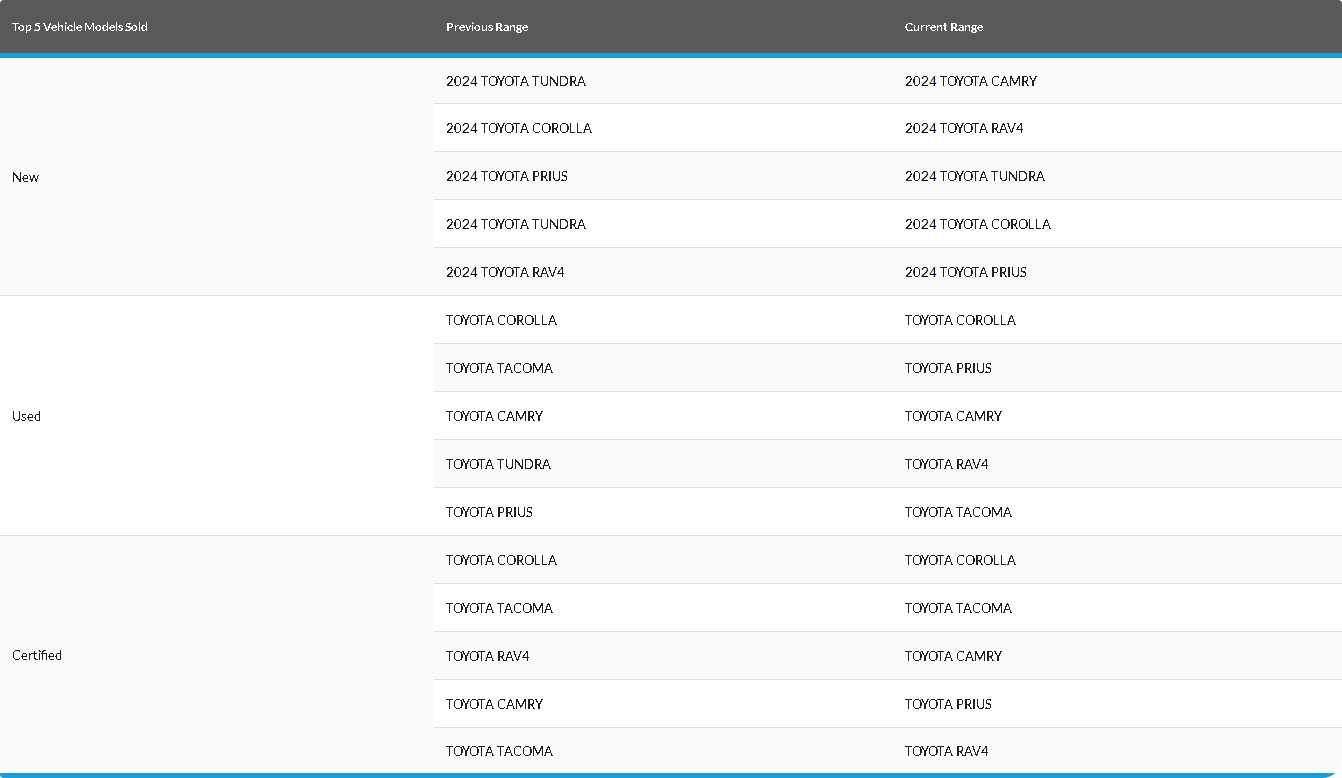
The following items are available in the Top 5 Vehicle Models Sold panel.
Top 5 Vehicle Models Sold: The category of vehicle sold, such as New or Used, displays.
Previous Range: The five best selling vehicle models during the previous date range for the corresponding vehicle category display.
Current Range: The five best selling vehicle models during the current date range for the corresponding vehicle category display.
Click here for a list of products that may be mentioned in this help file.